Getting started
Quickstart
Build and run your first automation in about five minutes.
This walkthrough builds a tiny scraper: open a page, pull a quote out of it, and log the result. You'll touch every core part of Orchestra on the way — the palette, the embedded browser, selectors, variables and the run controls.
1. Open a page#
Launch Orchestra. The center panel is a real embedded browser. Type quotes.toscrape.com into its address bar and press Enter — this site is made for scraping practice.
Browsing by hand is fine for exploring, but a flow needs its own Navigate step so it always starts from the right page:
- In the left palette, find Navigate (Browser category) and click it. A step appears in the flow panel.
- Select the step and set its URL to
https://quotes.toscrape.comin the config panel on the right.
2. Extract some text#
- Add an Extract step from the Data category.
- In the config panel, click Pick selector. The embedded browser enters picking mode — hover highlights elements.
- Click the first quote on the page. Orchestra fills in the most robust selector it can find (a popover offers alternatives if you want a different one).
- Give the extracted value a variable name:
quote.
3. Log the result#
Add an Output step (Data category) and set its value to $quote. Anything you write with a $ prefix reads a variable.
4. Run it#
Press Start in the top-right. The flow runs top to bottom: each step lights up as it executes, the browser navigates, and when it finishes the Output tab of the bottom panel shows your quote.
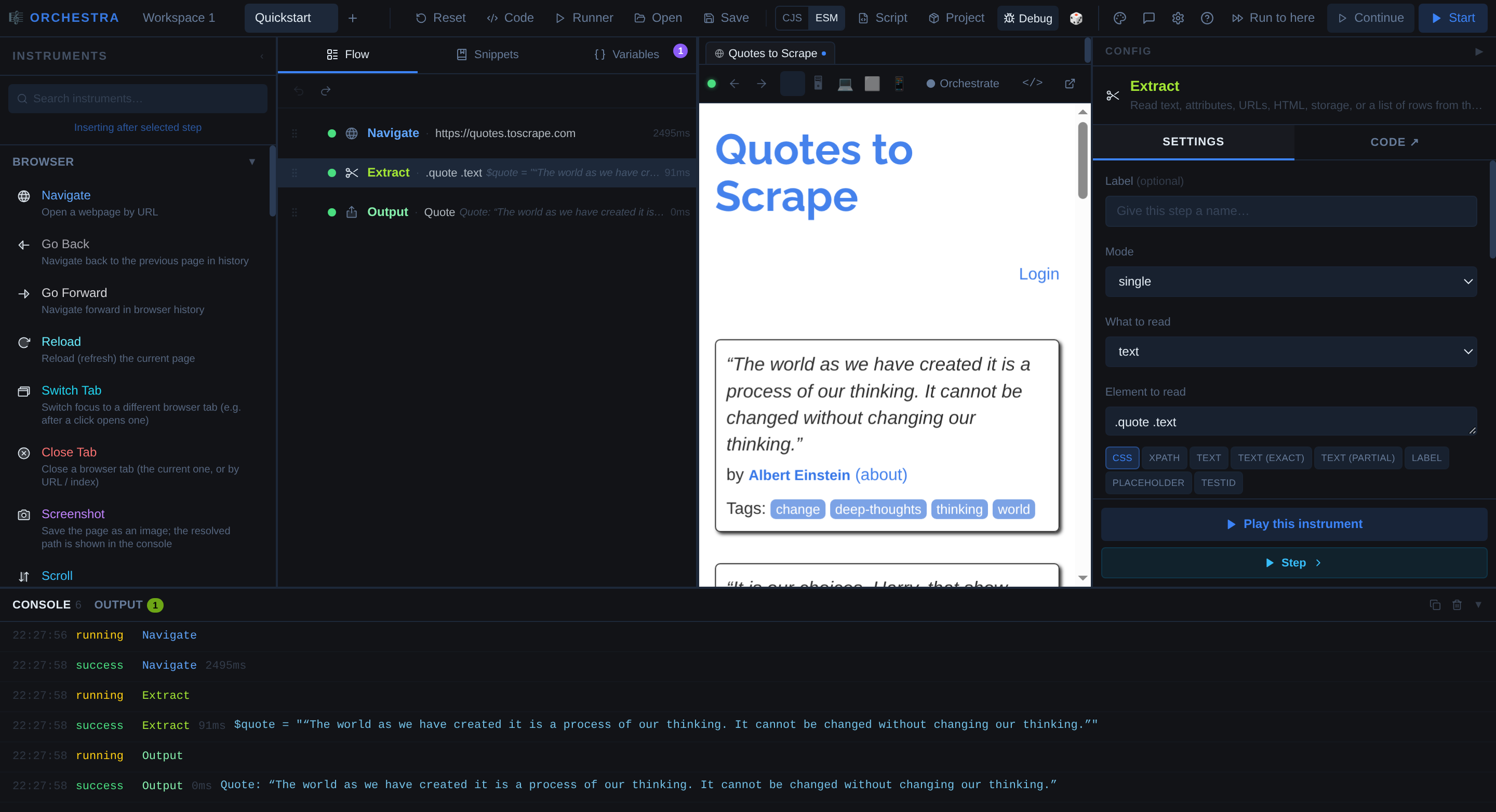
That's the whole loop: add steps, point them at the page, run, read the output.
Prefer not to build by hand?#
Click Orchestrate in the browser toolbar and just use the page — Orchestra records your clicks, typing and navigation as steps automatically. See Recording.
Where to go next#
- The interface — what every panel does.
- Selectors — how Orchestra finds elements, and how to pick good ones.
- Running flows — stepping, pausing, and running from a specific step.
- Output & data — exporting scraped data to JSON or CSV.